32,495,118
23
23+
Download Leaderboard
- 1 13,783,250
- 2 3,727,239
- 3 3,488,954
- 4 3,176,997
- 5 2,296,445
- 6 2,240,280
- 7 986,934
- 8 722,578
- 9 519,052
- 10 340,658
- 11 332,289
- 12 317,908
- 13 240,722
- 14 153,571
- 15 66,033
- 16 43,237
- 17 32,843
- 18 22,280
- 19 3,848
WordPress Plugins
-
FreeMyInternet
WordPressDisplay a site-wide protest banner or full-screen blackout overlay, with an optional start and end date.


 v1.0.1 3,848 dl
 -
WP-Ban
WordPressBan users by IP, IP range, host name, user agent and referrer URL from visiting your WordPress blog.


 v2.0.0 332,289 dl
 -
WP-CommentNavi
WordPressAdds a more advanced paging navigation for your comments to your WordPress blog.

 v2.0.0 66,033 dl
 -
WP-DBManager
WordPressManages your WordPress database.


 v4.0.0 3,176,997 dl
 -
WP-DownloadManager
WordPressAdds a simple download manager to your WordPress blog.


 v2.0.2 317,908 dl
 -
WP-DraftsForFriends
WordPressNow you don't need to add friends as users to the blog in order to let them preview your drafts


 v2.0.2 22,280 dl
 -
WP-EMail
WordPressAllows people to recommend/send your WordPress blog's post/page to a friend.


 v3.0.0 519,052 dl
 -
WP-InstantArticles
WordPress DeprecatedWP-InstantArticles generates a RSS feed of your WordPress posts as Instant Articles for Facebook to consume.
Closed -
WP-PageNavi
WordPressAdds a more advanced paging navigation interface.
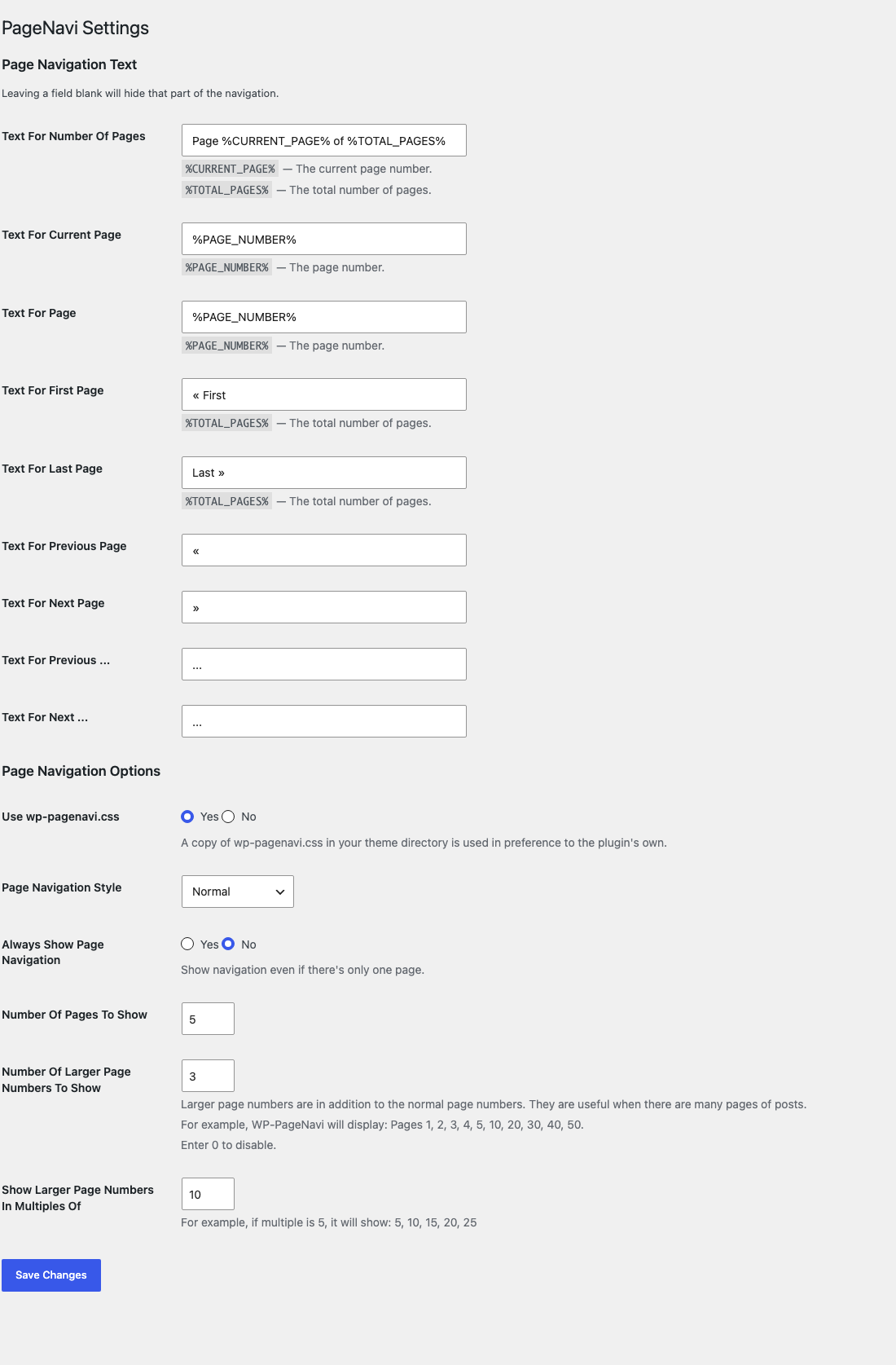
 v3.0.1 13,783,250 dl
 -
WP-PluginsUsed
WordPressDisplay WordPress plugins that you currently have (both active and inactive) onto a post/page.

 v2.0.1 32,843 dl
 -
WP-Polls
WordPressAdds an AJAX poll system to your WordPress blog. You can also easily add a poll into your WordPress's blog post/page.


 v3.0.2 3,727,239 dl
 -
WP-PostRatings
WordPressAdds an AJAX rating system for your WordPress site's content.


 v2.0.2 2,296,445 dl
 -
WP-PostViews
WordPressEnables you to display how many times a post/page had been viewed.


 v2.0.1 3,488,954 dl
 -
WP-Print
WordPressDisplays a printable version of your WordPress blog's post/page.


 v3.0.0 722,578 dl
 -
WP-RelativeDate
WordPressDisplays relative date alongside with your post/comments actual date.

 v2.0.0 43,237 dl
 -
WP-ServerInfo
WordPressDisplay your host's PHP, MYSQL, memcached & Redis information on your WordPress dashboard.


 v3.0.0 240,722 dl
 -
WP-ShowHide
WordPressAllows you to embed content within your blog post via WordPress ShortCode API and toggling the visibility of the content via a button.


 v3.0.0 153,571 dl
 -
WP-Stats
WordPressDisplay your WordPress blog statistics. Ranging from general total statistics, some of my plugins statistics and top 10 statistics.


 v3.0.1 340,658 dl
 -
WP-Sticky
WordPress DeprecatedAdds a sticky post feature to your WordPress's blog.
Closed -
WP-Sweep
WordPressWP-Sweep allows you to clean up unused, orphaned and duplicated data in your WordPress. It also optimizes your database tables.


 v2.0.1 2,240,280 dl
 -
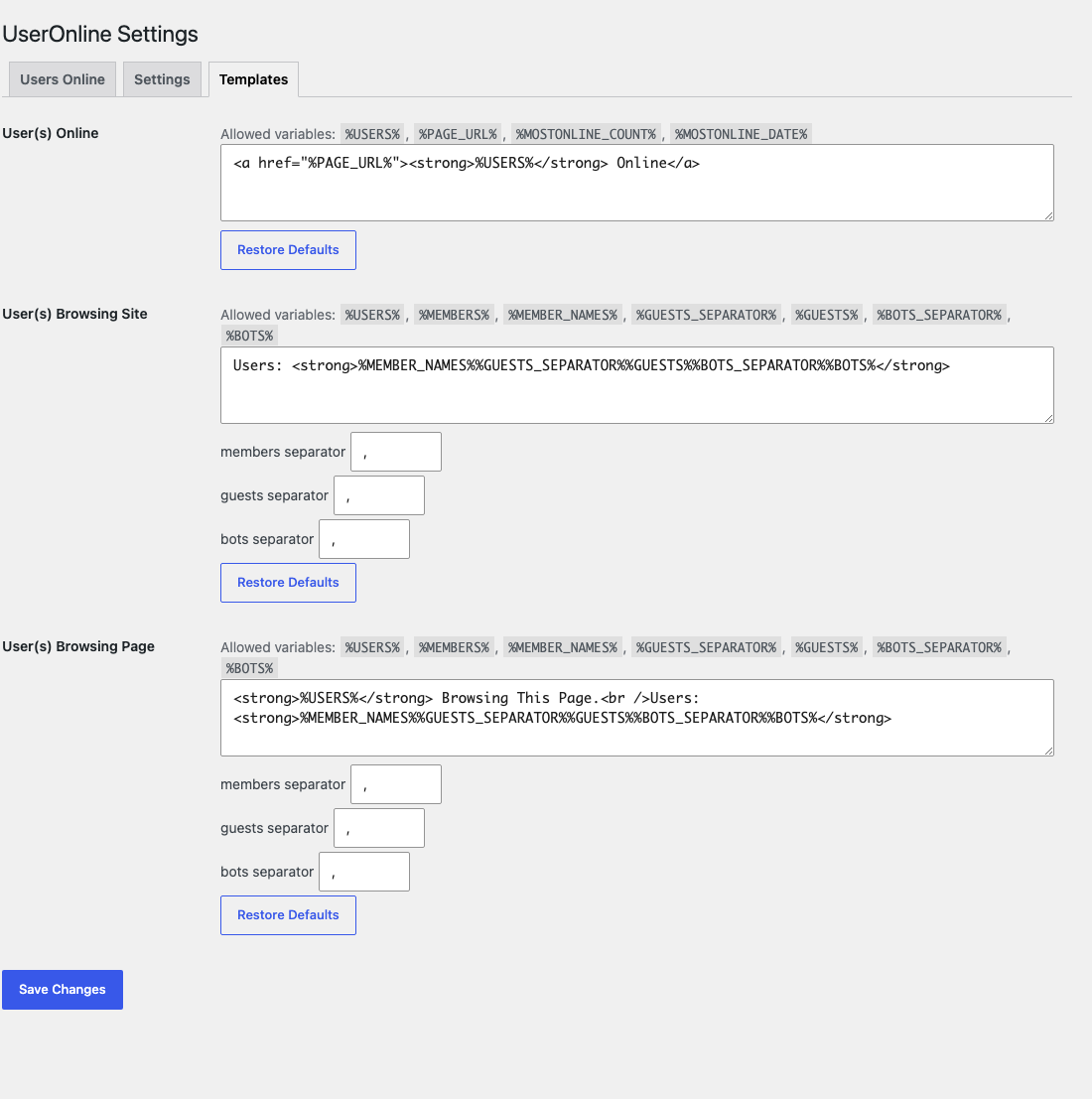
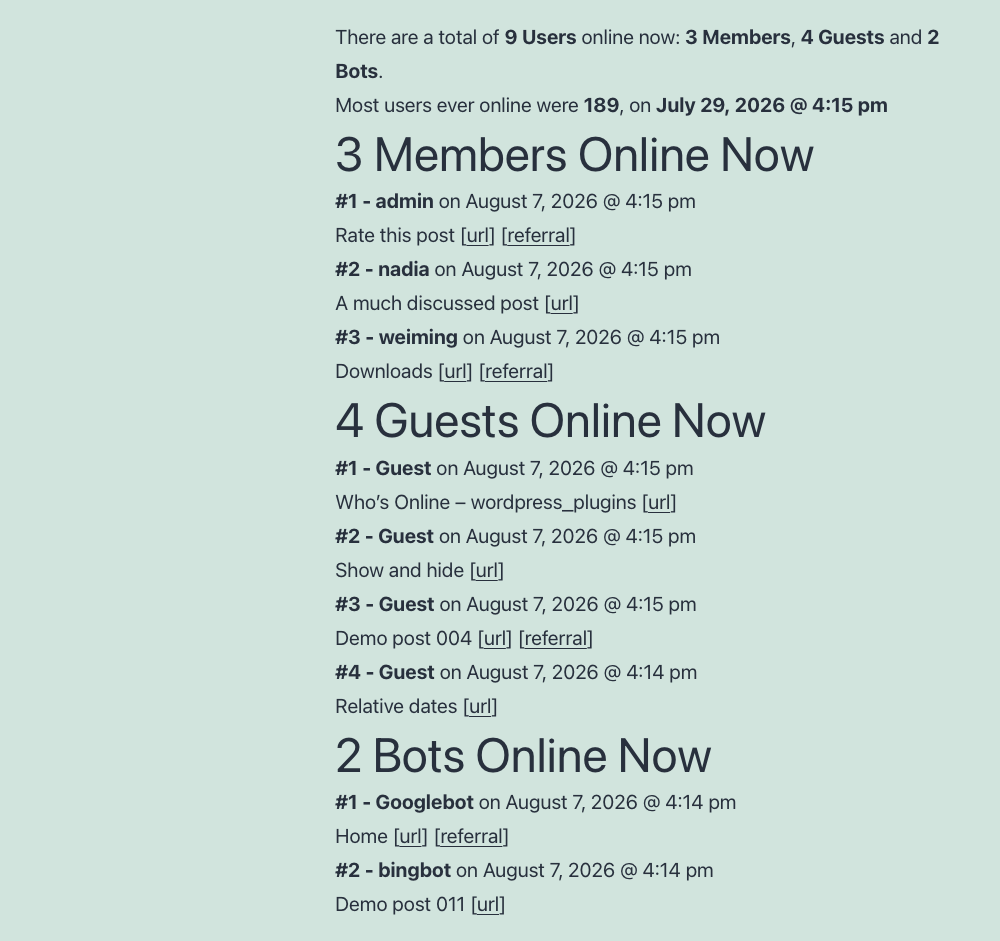
WP-UserOnline
WordPressEnable you to display how many users are online on your WordPress site with detailed statistics.
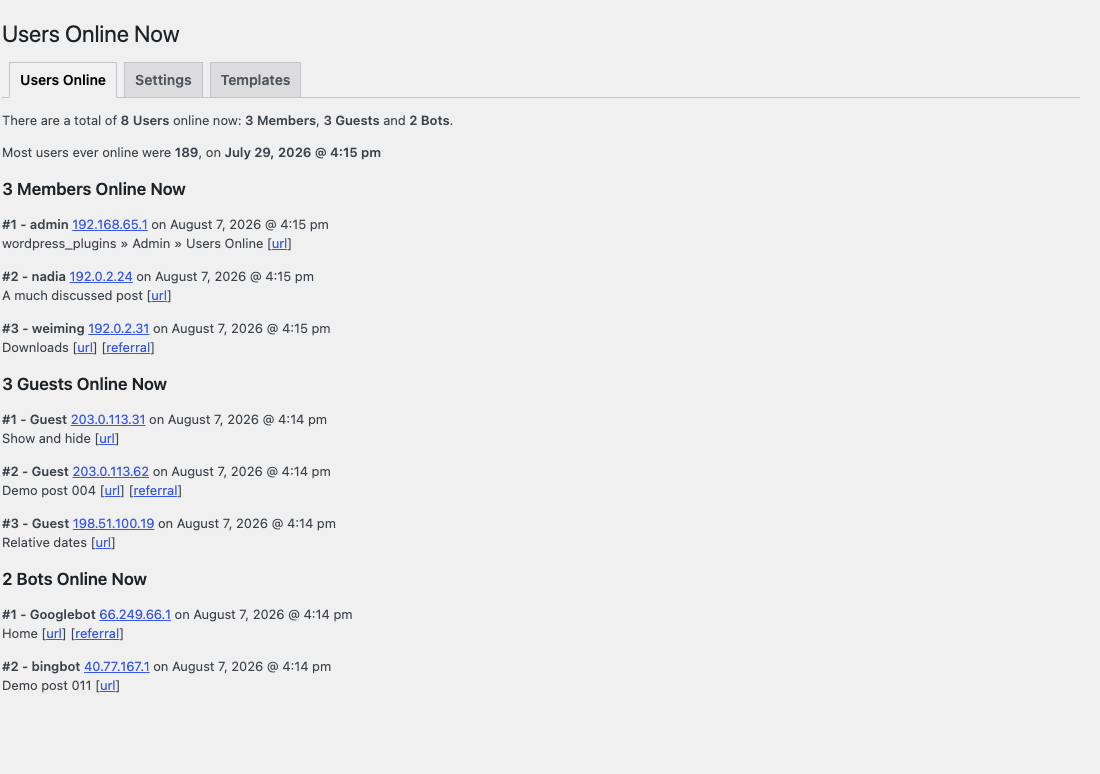
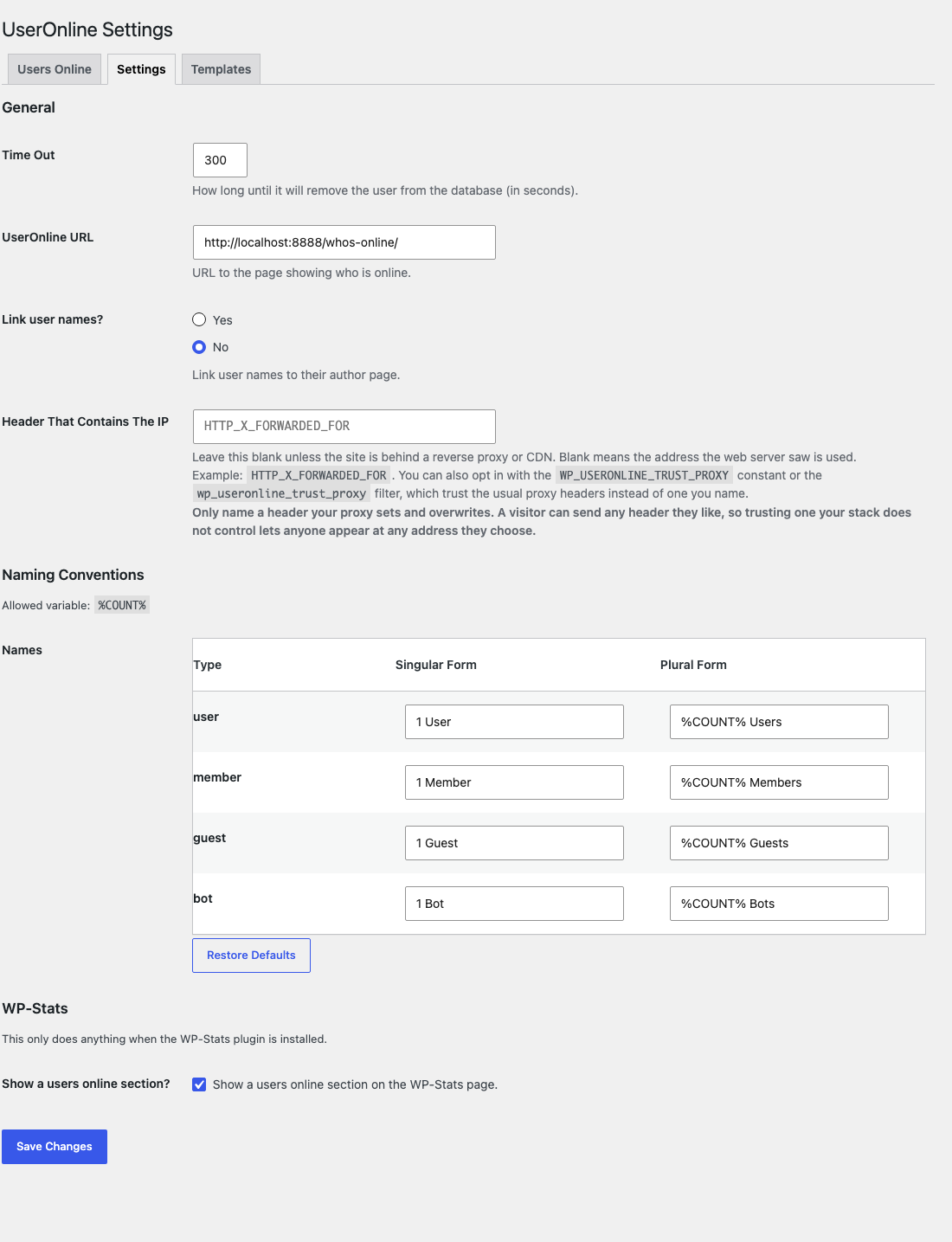
 v4.0.2 986,934 dl
 -
WP-Wap
WordPress DeprecatedBrowse your WordPress's blog entries on a WAP enabled mobile phone.
Closed -
migme
WordPress DeprecatedShare a post to migme's Miniblog whenever you publish a post in WordPress.
Closed
Scripts
-
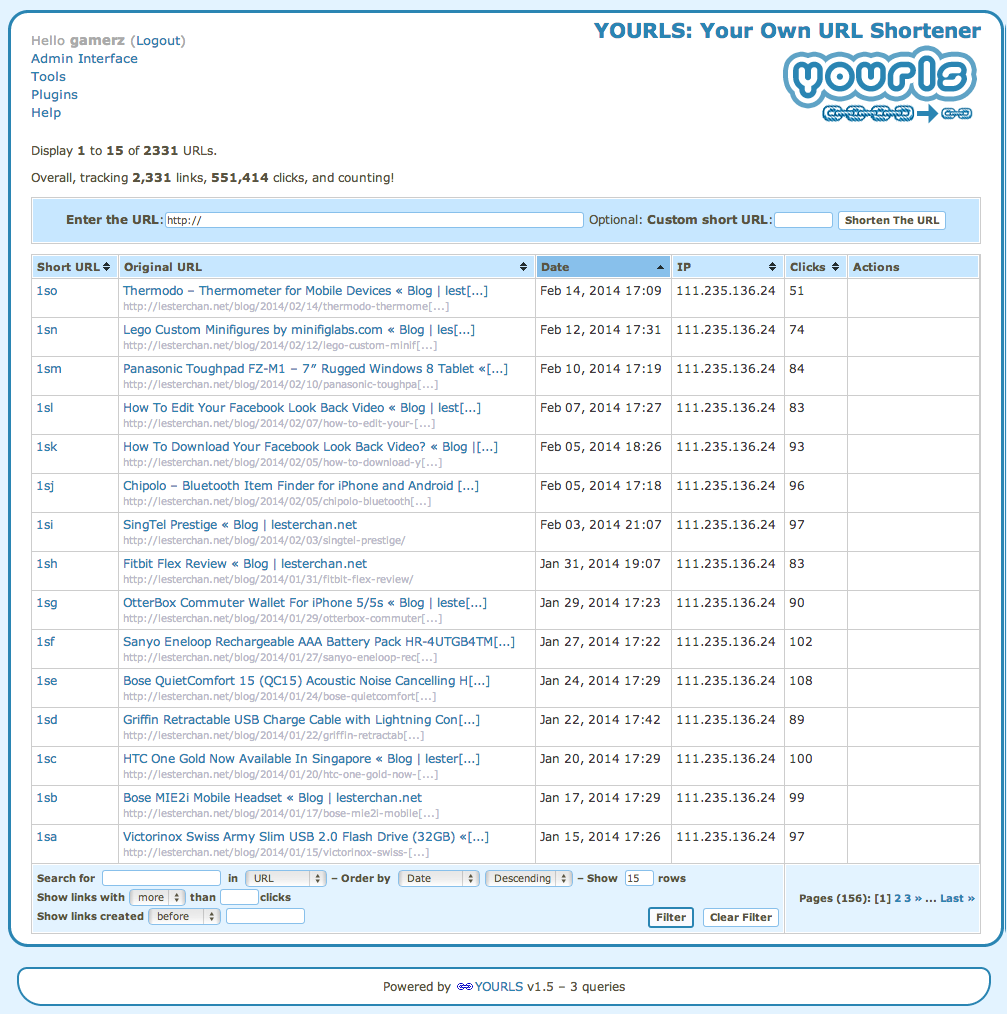
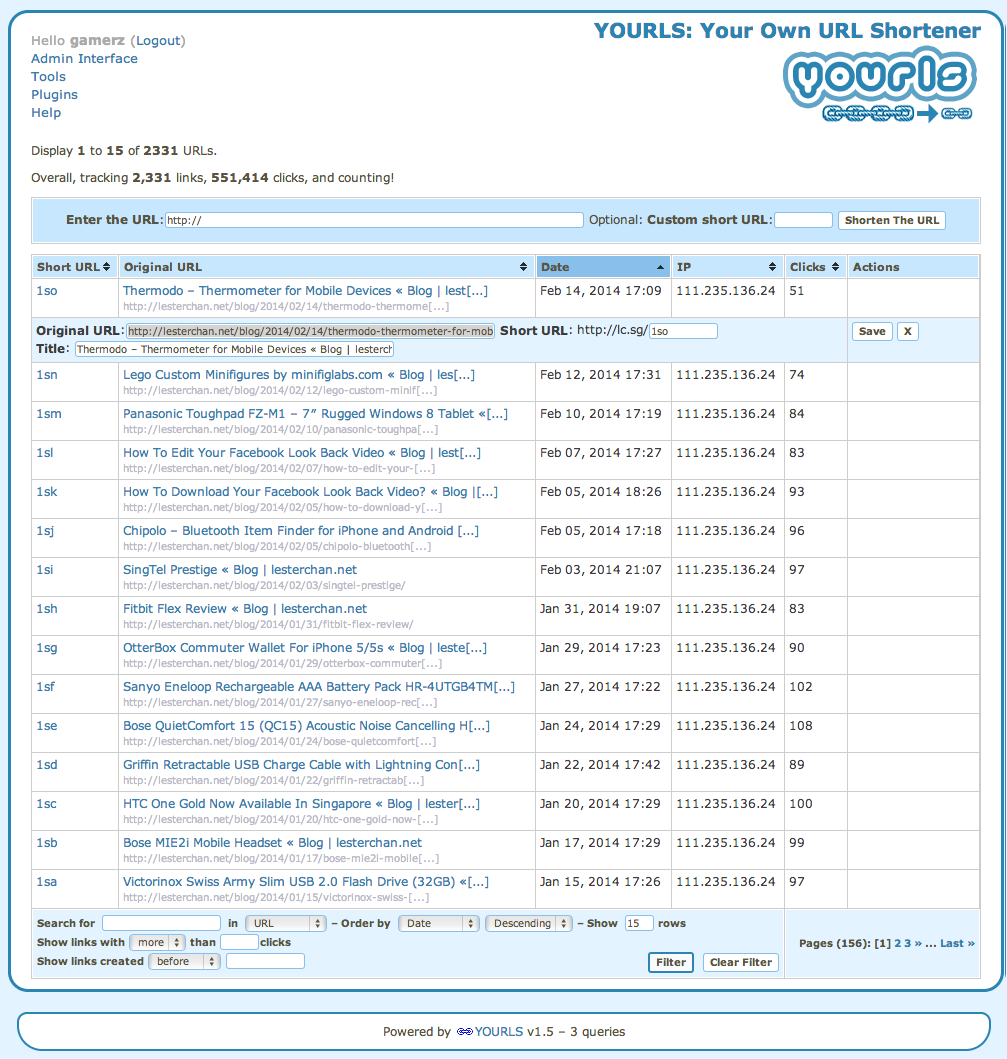
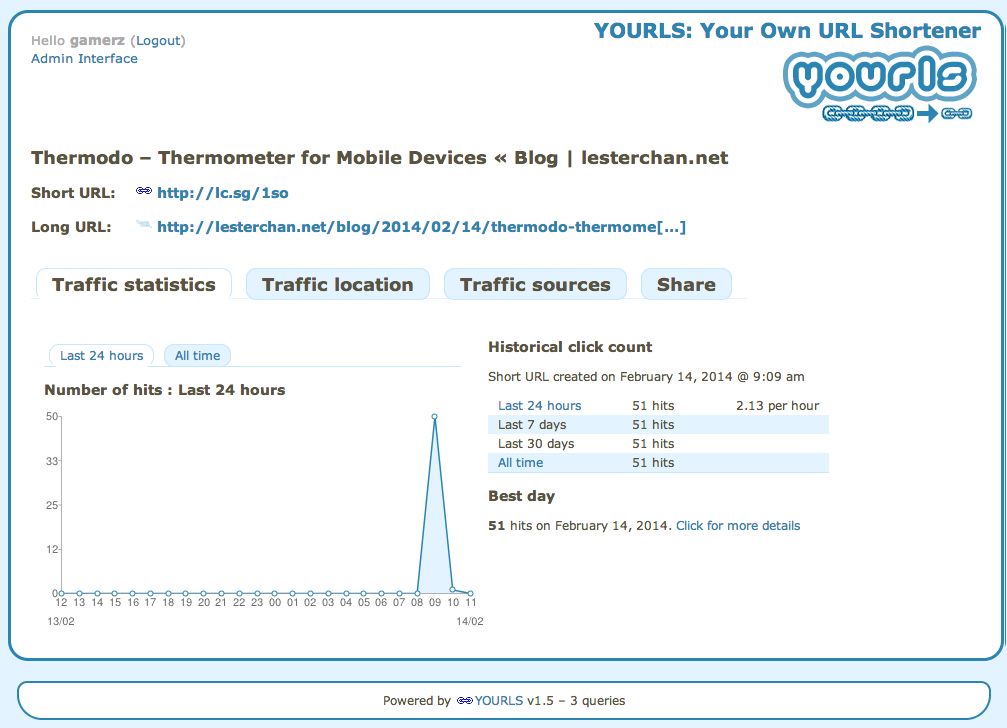
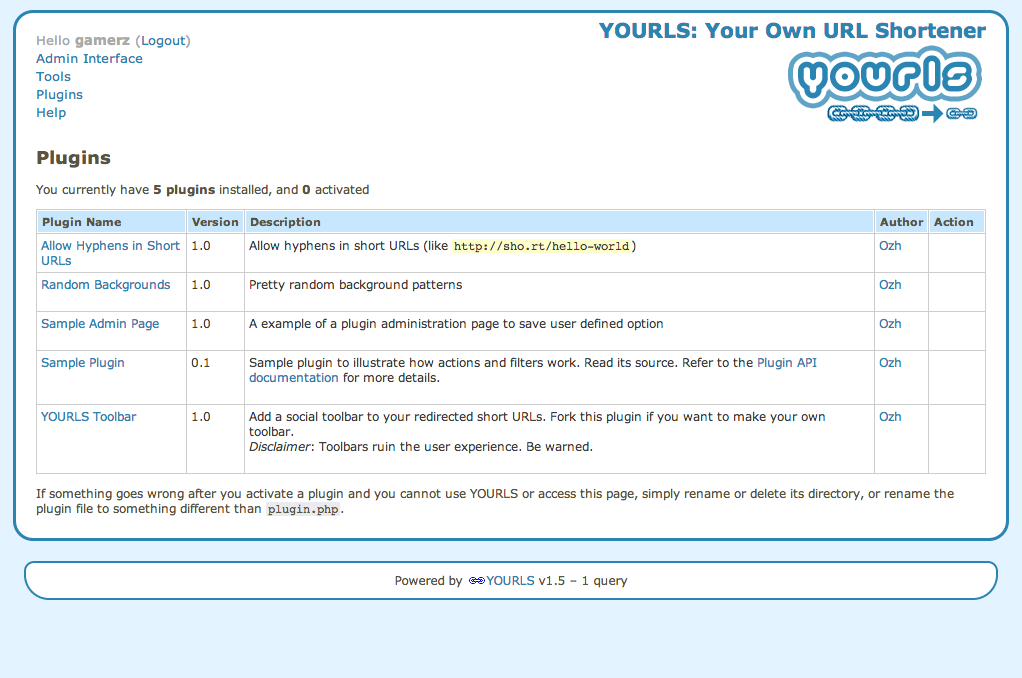
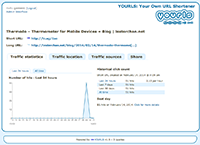
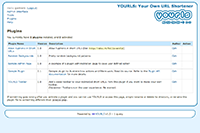
YOURLS - Your Own URL Shortener
PHPYOURLS stands for Your Own URL Shortener. It is a small set of PHP scripts that will allow you to run your URL shortening service (a la TinyURL or Bitly).
Running your URL shortener is fun, geeky, and useful: you own your data and don't depend on third party services. It's also a great way to add branding to your short URLs, instead of using the same public URL shortener everyone uses.
 Lester Chan 2009
 -
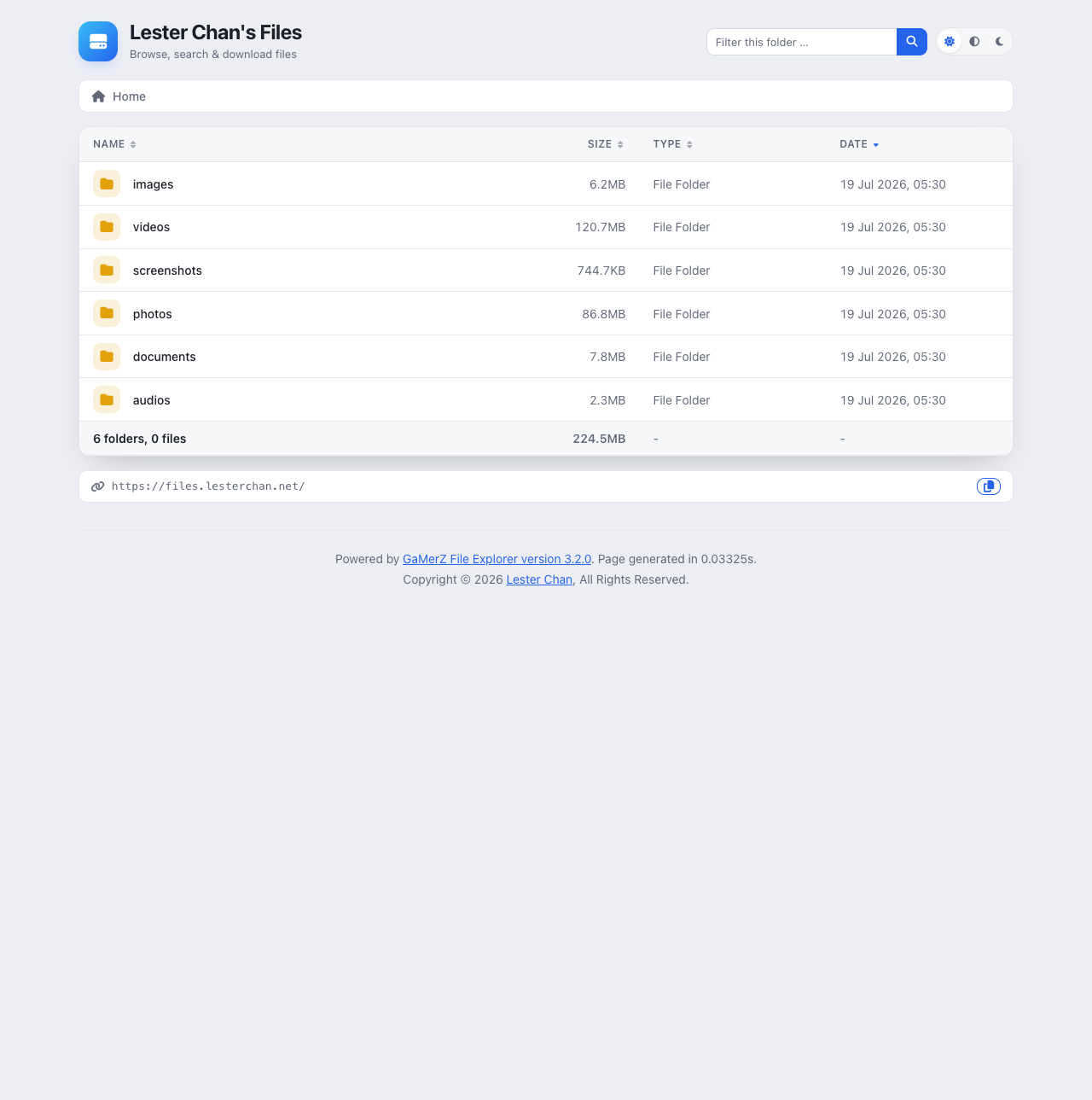
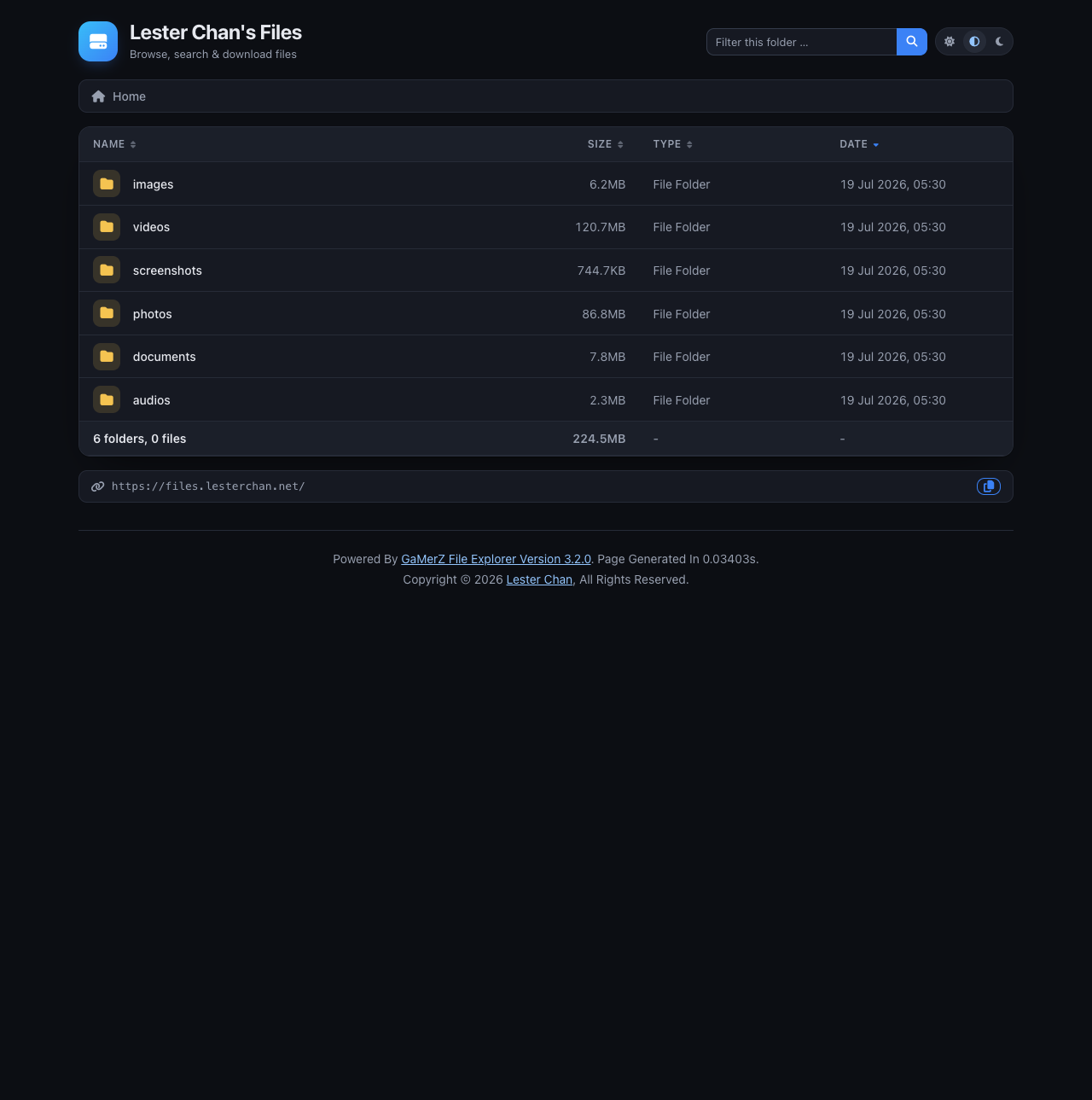
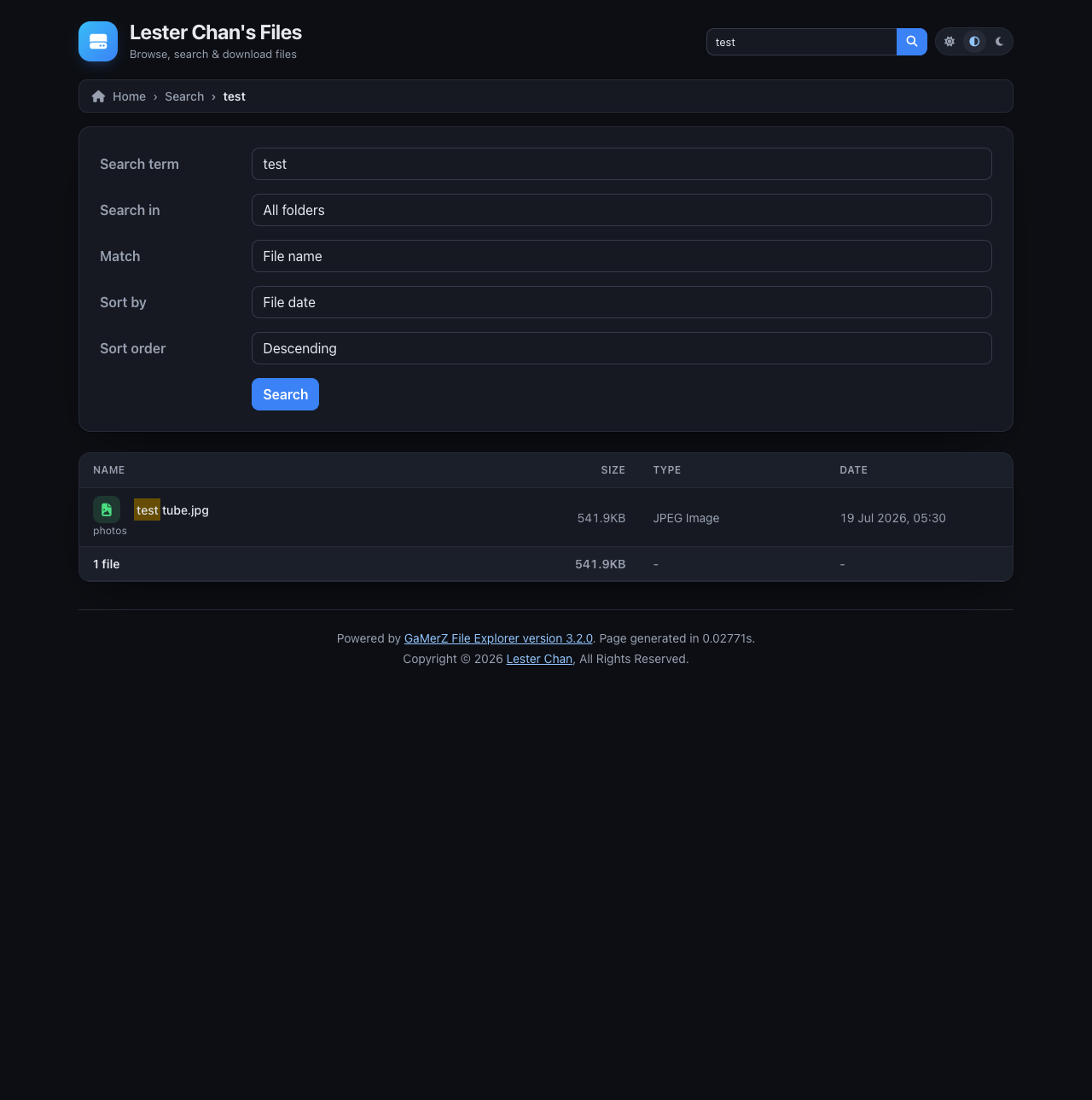
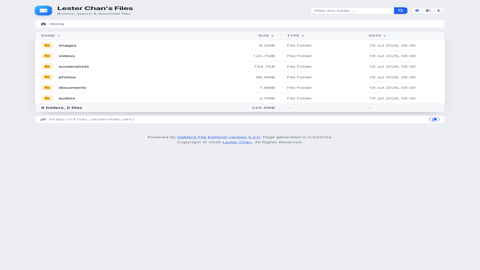
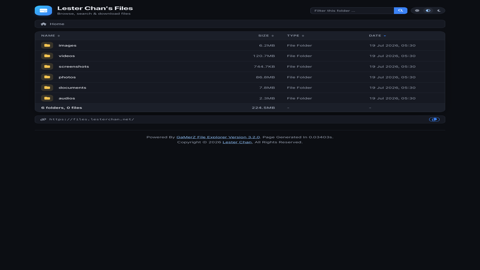
GaMerZ File Explorer
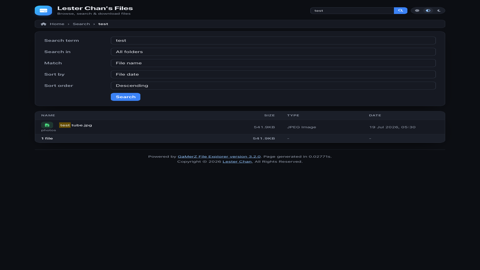
PHPA web-based file browser for web servers, with folder navigation, file previews, built-in search, and light and dark themes.

 Lester Chan 2006
 -
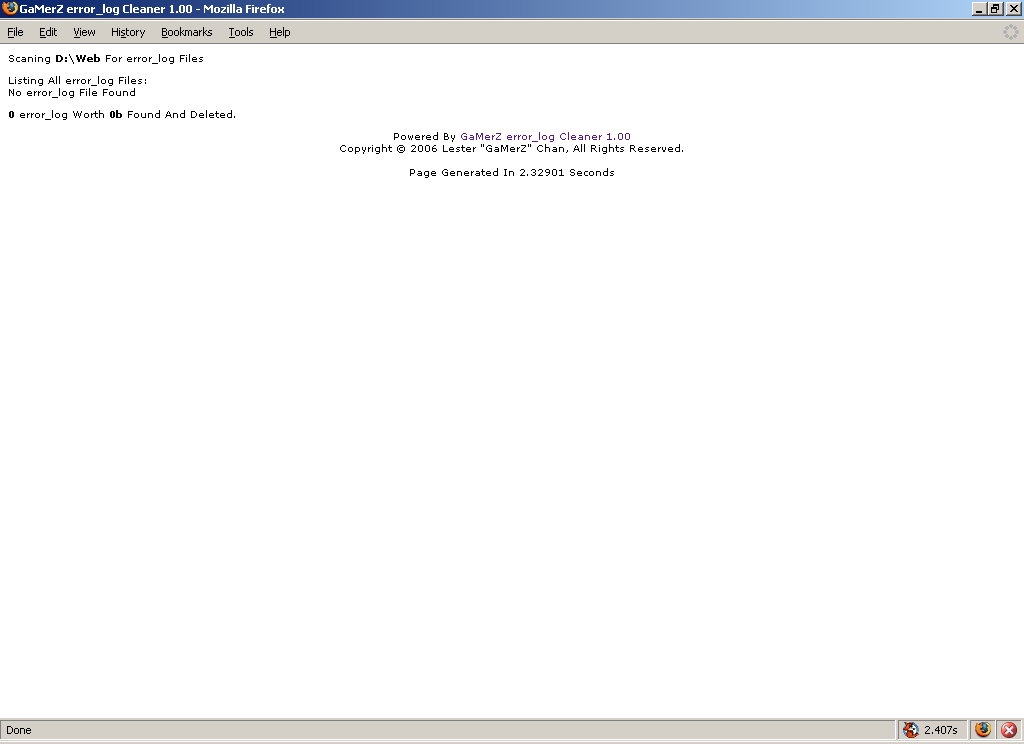
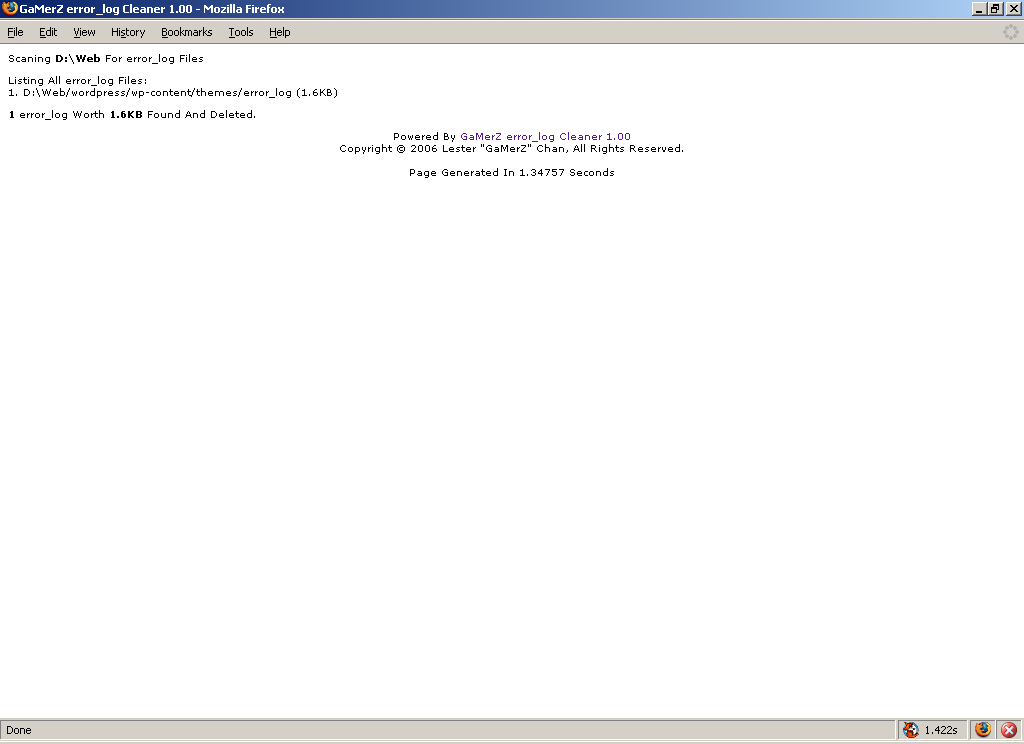
GaMerZ error_log Cleaner
PHPScans and delete away error_log file generated by PHP on your web host.
 Lester Chan 2005