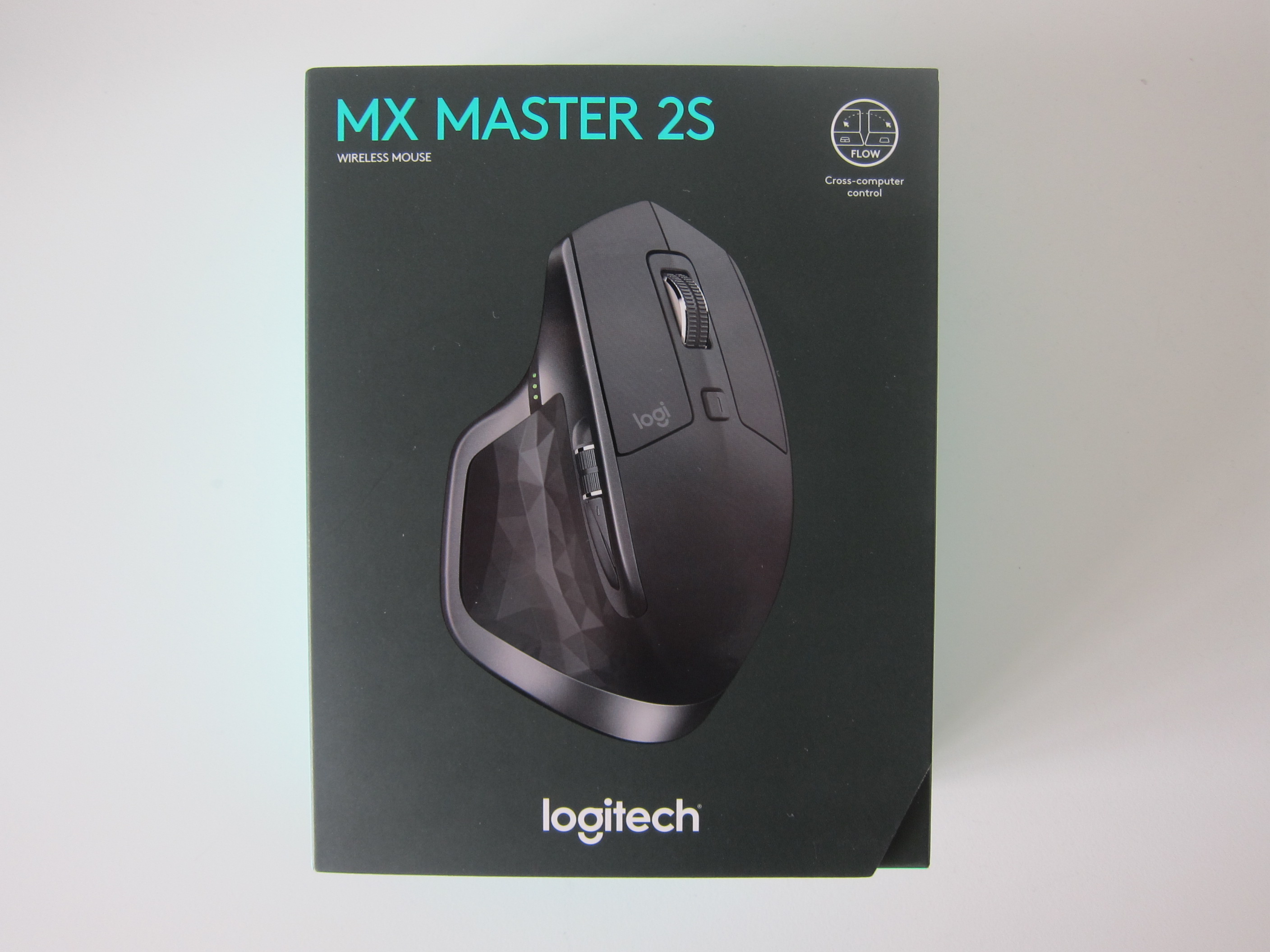
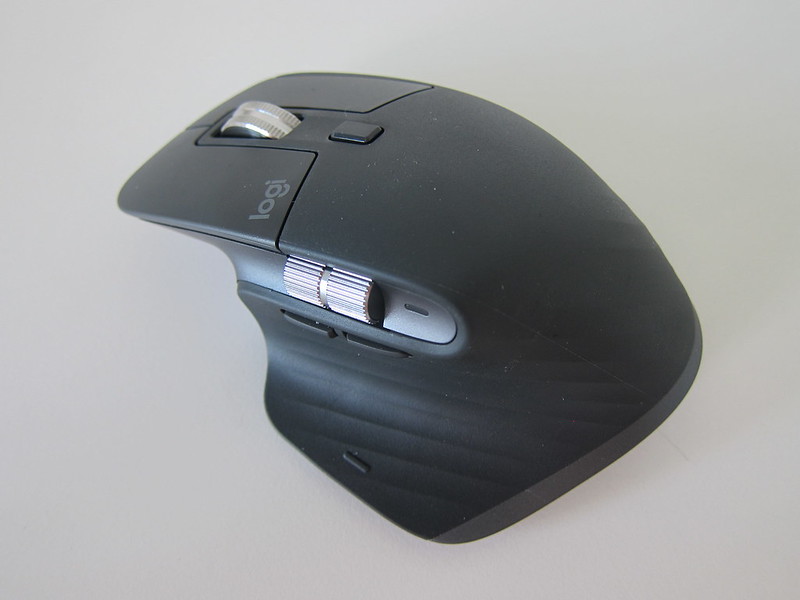
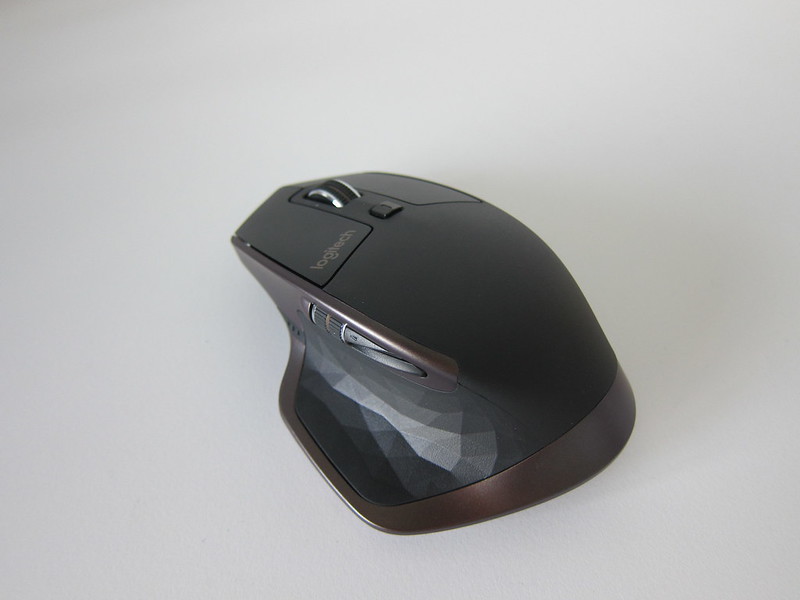
After purchasing my first Logitech MX Master back in April 2017, I went ahead to buy two more Logitech MX Master mice in White and Navy when Amazon is having a sale in May 2017.
I sold the Navy and my White spoiled after nine months probably due to bad luck. My first Logitech MX Master still works perfectly in the office. Since I bought it from Amazon, there is no local warranty here in Singapore.
Logitech MX Master is the best mouse that I have used so far. When Logitech announced the availability of Logitech MX Master 2S in Singapore back in June 2017, I am waiting for the right time to buy it.
Logitech MX Master 2S officially retails for S$149 in Singapore, but during IT exhibitions, they will drop the price to S$119 and mark it as “Star Buy.”
My mouse spoiled sometime in January 2018 and the nearest IT exhibition is IT Show 2018 which happens on 15th to 18th March 2018 at Suntec Singapore. Since it is not urgent, I waited three months to get the Logitech MX Master 2S.
Specifications
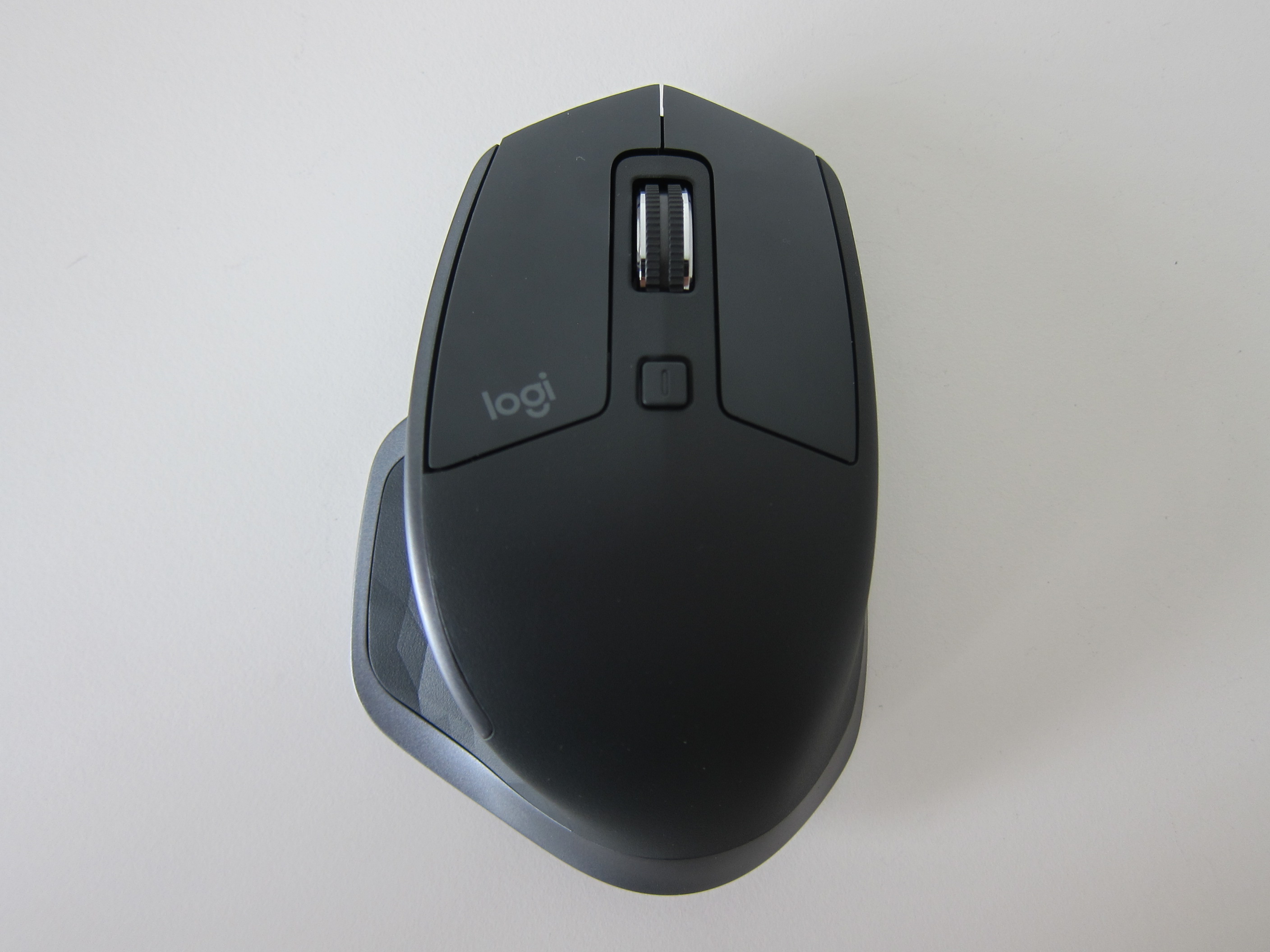
- Mouse Dimensions (Height x Width x Depth): 126 x 85.7 x 48.4 (mm)
- Mouse Weight: 145g
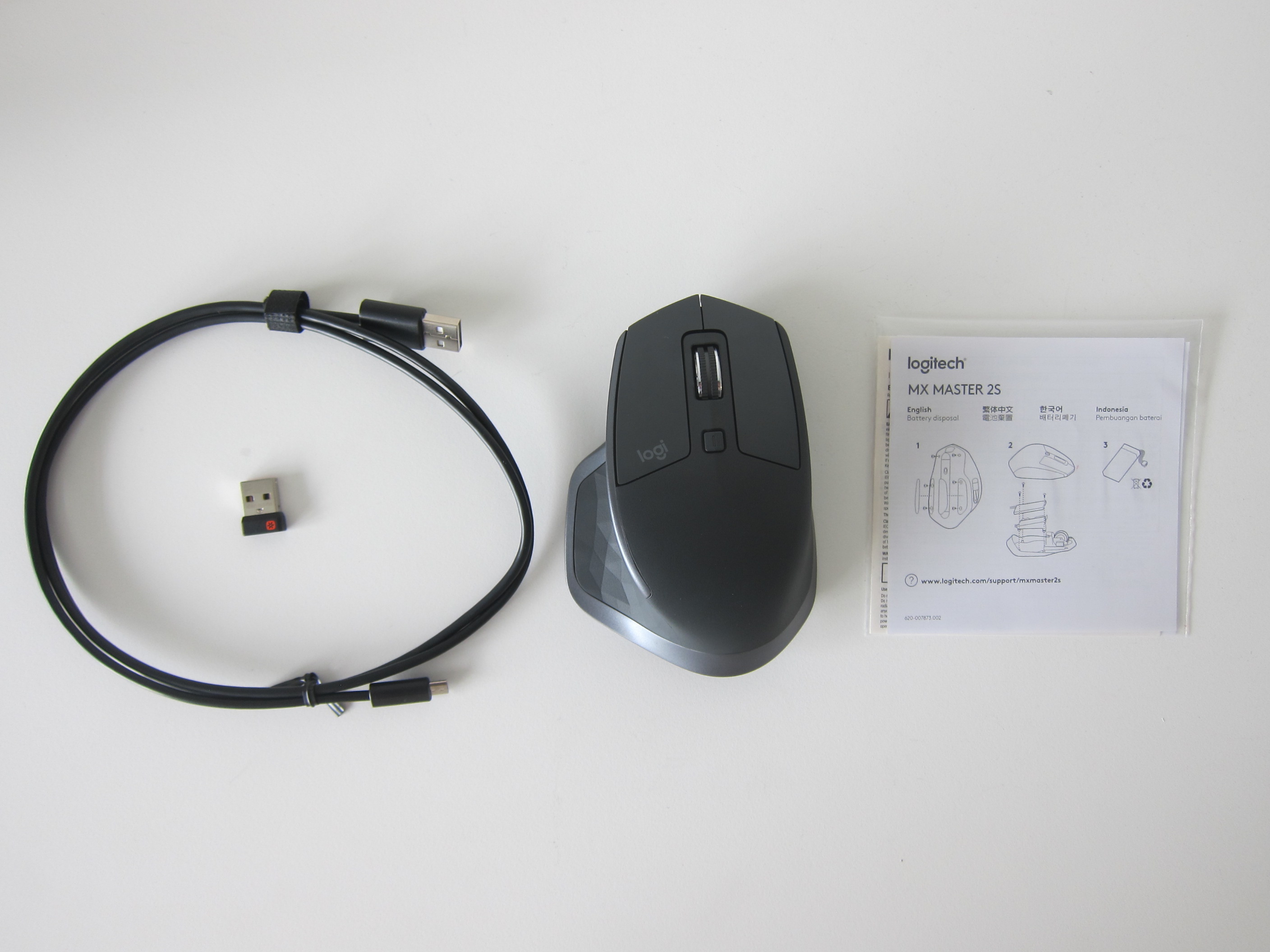
- Unifying Receiver Dimensions (Height x Width x Depth): 18.4 x 14.4 x 6.6 (mm)
- Unifying Receiver Weight: 2g
- Number of Buttons: 7
- Wireless Distance: 10m
- Wireless Frequency: 2.4GHz
- Sensor Technology: Darkfield Laser Sensor
- DPI: 200dpi to 4,000dpi (can be set in increments of 50dpi)
- Battery: Rechargeable Lithium Polymer 500mAh
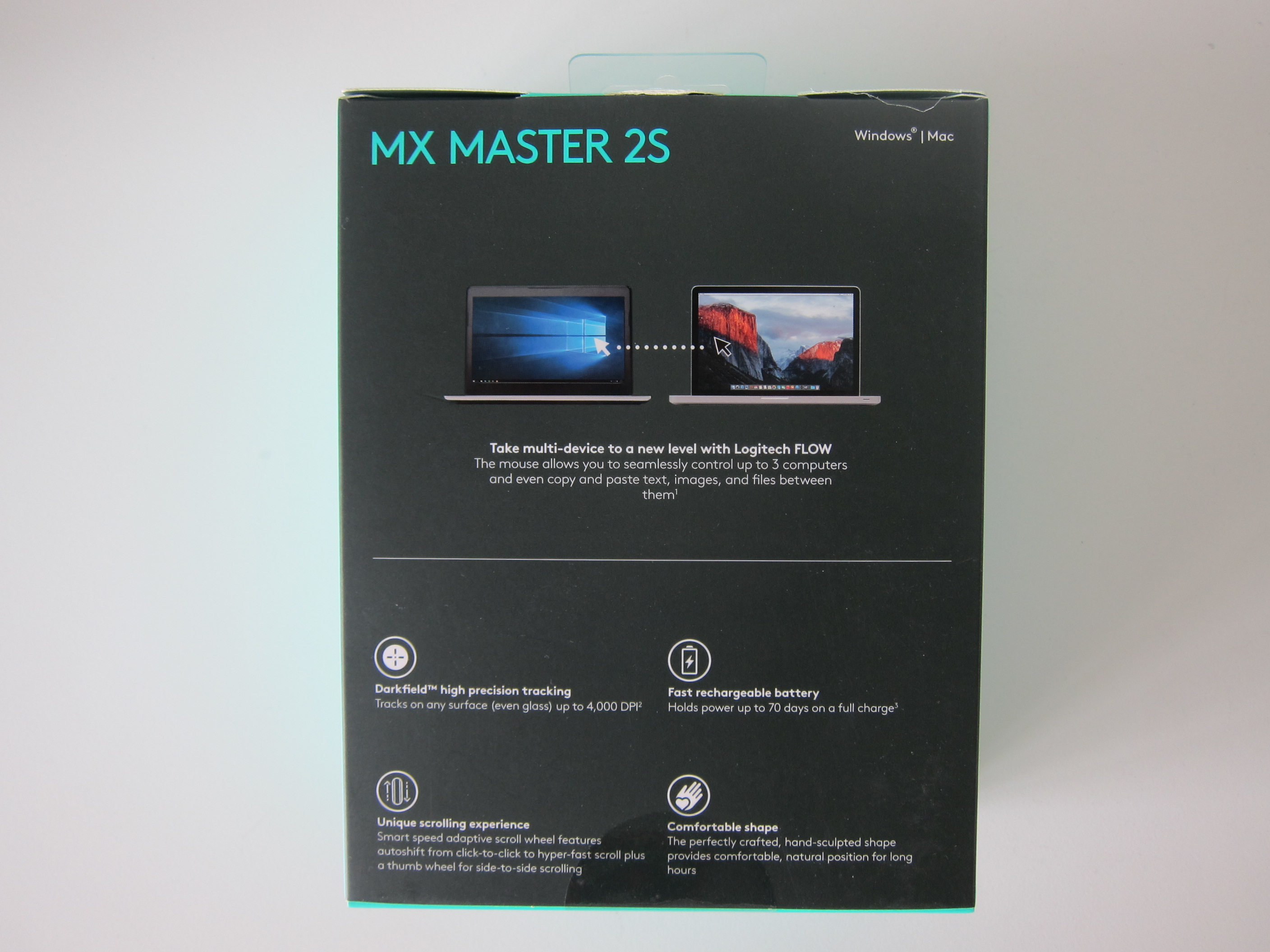
- Battery Life: Up to 70 days on a single full charge
- Logitech Flow: Yes
The two main differences between the Logitech MX Master 2S and Logitech MX Master are the DPI and battery life.
Logitech MX Master 2S can go up to 4,000dpi with more fine grain dpi control of 50dpi. Logitech MX Master, on the other hand, can go up to only 1,600dpi and an increment of 100dpi.
Regarding battery life, it is 70 days on the Logitech MX Master 2S vs. 40 days on the Logitech MX Master.
There is only one new feature in the Logitech MX Master 2S, and it is called Logitech Flow.
Logitech Flow allows you to automatically switch between computers by moving your mouse cursor to the edge of the screen. You can also copy and paste text, images, and files between your computers.
To use Logitech Flow, you will need to download and install the Logitech Options software on your respective computers.
I am not a fan of installing unnecessary software, so I will be giving Logitech Flow a pass as I have no use case for it yet.







Hi there
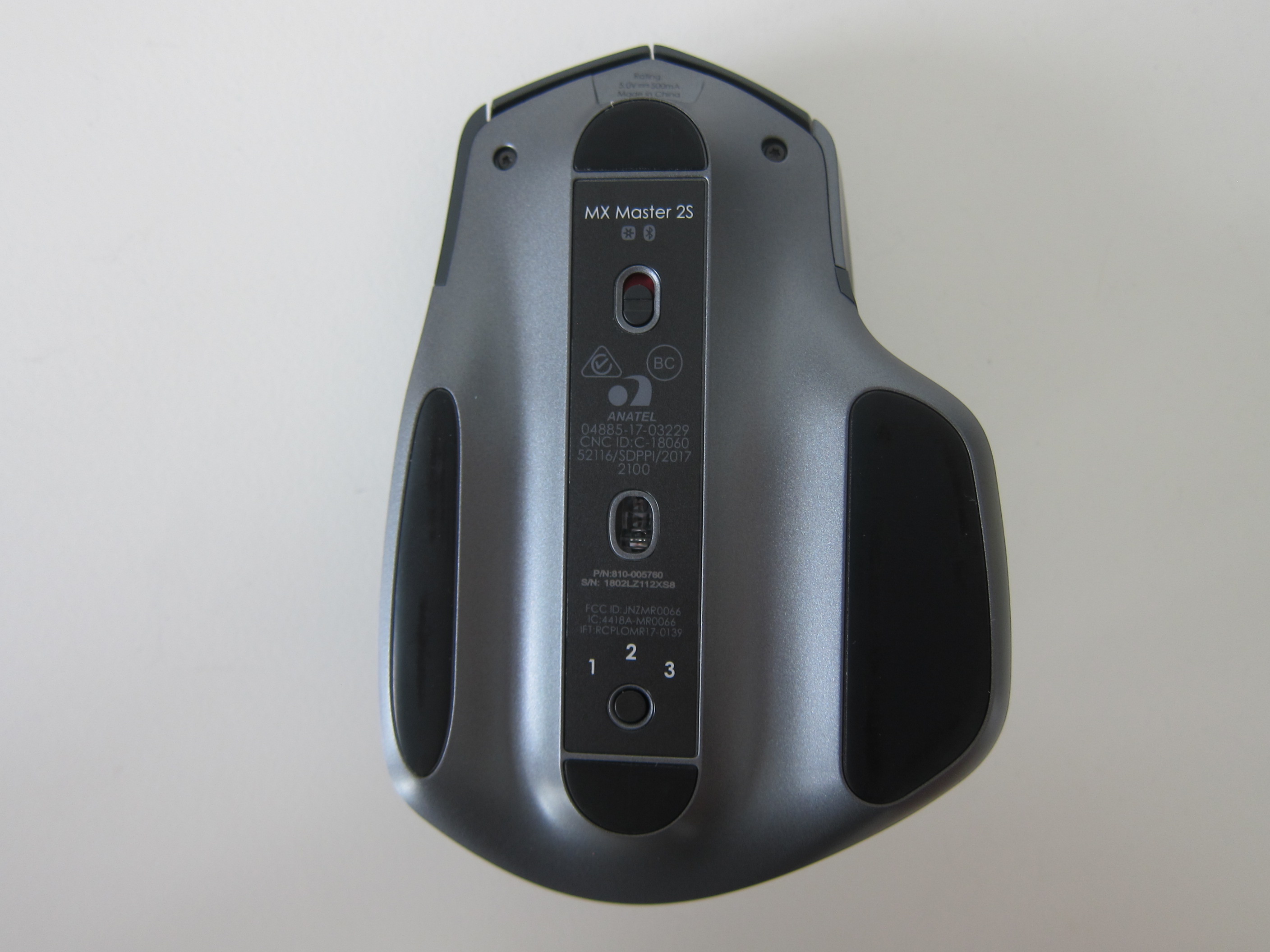
Do you find it awkward that the button to switch among Bluetooth devices is located under the mouse? Isn’t it cumbersome to do the switching, as opposed to, say, the Logitech M720 Triathlon Multi-Device Mouse where the switch button is at the side?
Is it possible to reprogram any of the Master 2S buttons for the device switching capability in place of the button under the mouse?
And finally, does Logitech has a good multi-device MECHANICAL keyboard that you can recommend? I am about to plonk some $$$ for a Filco Convertible 2 KB.
Nope. I don’t switch that often, so it is ok for me. In fact I like it at the bottom. It is less obstructive. Nope the button switching can’t be switched (no pun intended).
I have not used Logitech mechanical keyboard. I will get DAS one if I have to.