The ROG Strix XG129C is a 12.3-inch touchscreen gaming monitor meant to sit under or beside your main monitor. It is for people who want a small secondary touchscreen on a cramped desk.

It retails for S$339 on Shopee and Lazada. However, on Challenger, it retails for S$299 as an online exclusive price (but sadly it is sold out).
Unboxing
The box is pretty plain for a ROG device.

In the box, you get an HDMI cable, a USB-C cable, a USB-C power adapter, a quick start guide, and a warranty card.

Hardware
The hardware is decent. It is a 12.3-inch IPS panel with a 1920 x 720 resolution in a 24:9 aspect ratio, so it is a long, thin strip rather than a tiny normal monitor. Refresh rate tops out at 75Hz and brightness at 300 nits, which is fine for glancing at stats and chat, but it is not something you game on.


There is a built-in kickstand and a 1/4-inch tripod socket for mounting on a tripod.


For controls, there is a power button and a 5-way navigation button to go through the on-screen display (OSD) menu. It works, but on a small screen that sits close to you, I find it easier to change settings with ASUS DisplayWidget Center, which lets you adjust them with your mouse or by touch.

For ports, there are 2x USB-C (one with DisplayPort Alt Mode, one for power) and an HDMI port. The catch is that touch input needs a USB-C connection to your PC. HDMI only carries video, so if your graphics card or motherboard does not have a USB-C port with DisplayPort Alt Mode and at least 10W of power output, you will end up using HDMI for video, one USB-C for power, and another USB-C for touch. That is a lot of cables for a 12.3-inch screen.


AIDA64 And Chat
ASUS bundles a 1-year subscription to AIDA64 Extreme.
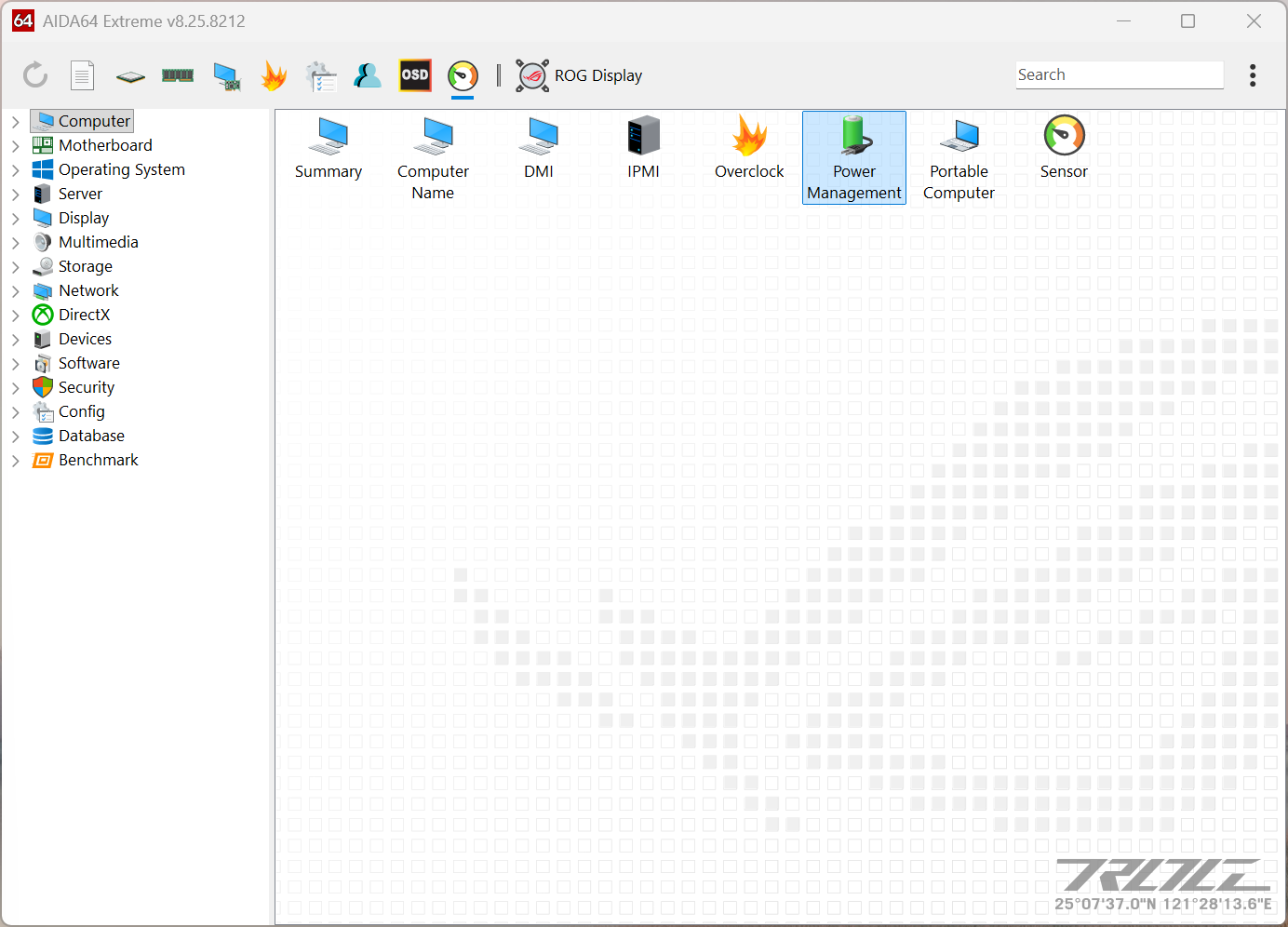
It also includes ROG SensorPanel themes.

This gives you a place to display your hardware stats, like CPU and GPU temperatures and usage, without alt-tabbing out of a game. After the first year, you will have to pay for the subscription yourself.

The other obvious use is as a secondary screen for chat. Discord or a stream chat fits nicely in the wide 24:9 layout, and you can scroll it by touch.
Compared With Elgato Stream Deck
Considering the price, it is quite good as a small secondary screen. For context, I bought my Elgato Stream Deck MK.2 for about S$200, and the XG129C gives you a full touchscreen for about S$140 more.
On the XG129C, the Asus DisplayWidget Center is available to adjust monitor settings.

To emulate Stream Deck controls, there is the Asus Dial & Control Panel. It is customizable, and when launching different apps, you can customize different controls.

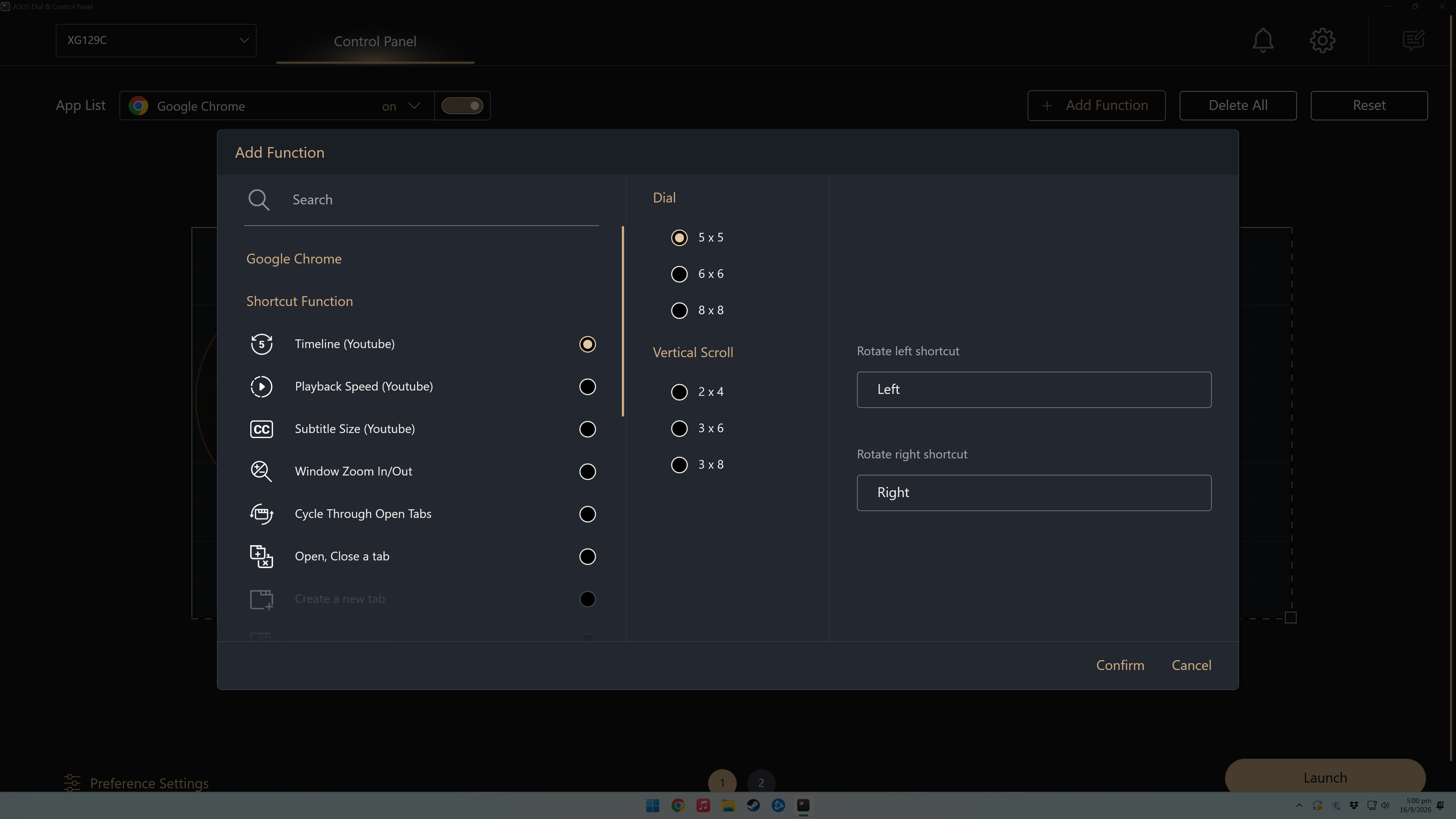
Here is what it looks like on the Asus ROG Strix XG129C.


Conclusion
The ROG Strix XG129C gives you flexibility that a Stream Deck does not. You can use it as buttons to tap, the way you press keys on a Stream Deck, and as a display for your hardware stats or chat at the same time.
I see it more as an alternative to a Stream Deck than to another monitor, which makes the target audience very small. Asus Dial & Control Panel is customizable, but it is more cumbersome to use than the Stream Deck software.
For most of us, getting another monitor makes more sense, and you only need to top up a little more. Of course, that assumes you have the desk space for it since the Asus ROG Strix XG129C has a small footprint and sits nicely below your current monitor.


